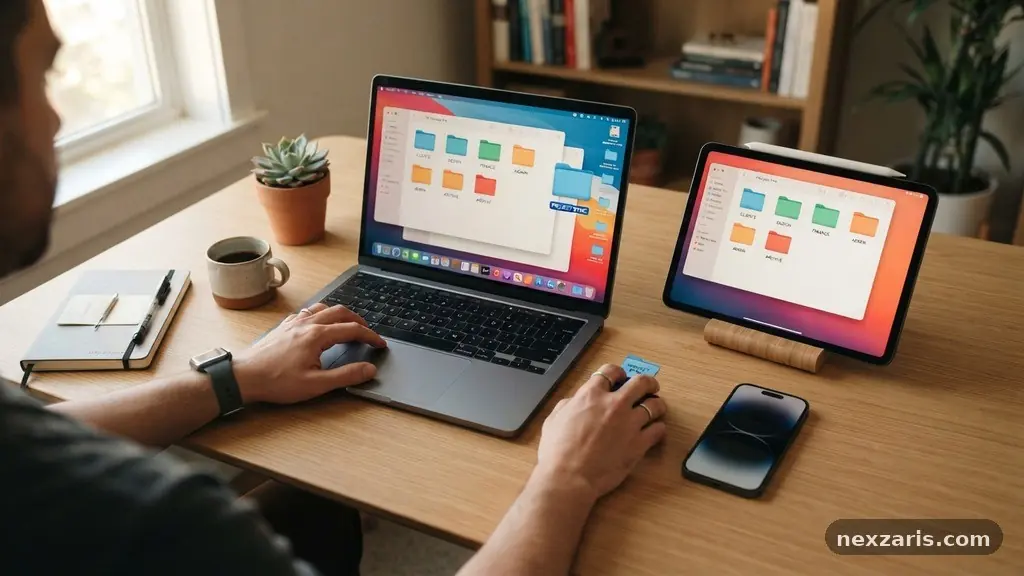
A Practical Guide to Organizing Files Across Multiple Devices
A practical guide to organizing files across multiple devices is essential for anyone juggling a smartphone, a work laptop, and a home desktop. Without a consistent system, you end up with duplicate documents, missing photos, and hours wasted searching through hidden folders.
By establishing a unified approach to your digital life, you can ensure that your most important work is available exactly when you need it, regardless of which screen you happen to be looking at. This shift from reactive file management to a proactive strategy saves time and reduces the common stress of digital clutter.
Establishing a Unified Folder Hierarchy
The foundation of any successful digital organization system is a logical folder hierarchy that remains consistent across every device you own. You should create a primary directory structure that mimics the way you think about your life or your work, rather than letting your computer’s default settings dictate your habits. For instance, start with a top-level folder for “Personal” and another for “Professional” to keep your primary responsibilities distinct.
Within these top-level categories, you can branch out into specific sub-folders based on projects, years, or categories of interest. The goal is to avoid creating a flat list of hundreds of files that you have to scroll through for minutes at a time.
Instead, aim for a tree structure where no single folder contains more than twenty items. This makes it easier to scan, locate, and manage your data on smaller screens like smartphones or tablets.
Consistency is the most important factor in maintaining this structure. If you have a folder named “Invoices” on your laptop, ensure that your cloud drive uses the exact same name and location for that specific data.
When the path to your files is identical on every device, your brain builds muscle memory, allowing you to find documents without conscious effort. This consistency effectively eliminates the friction of switching between hardware platforms.
Implementing Standardized Naming Conventions
A robust file naming strategy is the second pillar of maintaining order across your digital ecosystem. If you rely on default names like “Document1” or “IMG_5832,” you will inevitably lose track of your files as they sync across different drives and devices. Adopt a format that includes a date, a descriptive project name, and a version number to ensure that every file is identifiable at a glance.
A common and effective naming convention involves using the ISO date format, such as YYYY-MM-DD, followed by a brief description. For example, a file named “2023-10-25_Budget_Report_v02.pdf” tells you exactly what the file is and when it was created. This method also naturally sorts your files chronologically when you view them in a list, which is a major advantage for project-based work.
Avoid using generic terms or excessive special characters in your filenames, as these can sometimes cause issues with cross-platform compatibility. Stick to letters, numbers, underscores, and hyphens to ensure that your files remain readable by both Windows, macOS, Linux, and mobile operating systems. Once you commit to a specific naming pattern, apply it retroactively to your most frequently used files to bring immediate clarity to your storage environment.
Leveraging Cloud Storage for Synchronization
Cloud storage serves as the glue that holds your multi-device strategy together by acting as a central hub for your data. By using services like Dropbox, Google Drive, or OneDrive, you enable automatic file synchronization that pushes changes from one device to every other device linked to your account. This removes the need for manual transfers or emailing documents to yourself, which is a common source of file version confusion.
When selecting a cloud provider, look for robust integration with your existing operating systems to minimize the need for third-party tools. Most modern cloud drives allow you to designate specific folders to be kept locally on your machine while keeping others only in the cloud to save space. This hybrid approach is ideal for managing large archives without overwhelming the limited local storage of your mobile devices or ultra-thin laptops.
Remember that cloud storage is not a substitute for a comprehensive data backup strategy. While synchronization is excellent for accessibility, it does not protect against accidental deletion or file corruption that can propagate across all your synced devices. Always maintain at least one offline copy of your most critical data on an external hard drive to ensure you have a recovery point if your cloud account is compromised or becomes inaccessible.
Managing Local and External Storage
While cloud solutions are convenient, they shouldn’t be your only storage destination, especially for massive media libraries or sensitive archives. Local storage on your primary machine offers the fastest read and write speeds, which is beneficial for tasks like video editing or large-scale data processing. Use your internal drive for active, current work and use external hard drives for long-term storage of projects you no longer access daily.
If you have a large library of photos or high-resolution videos, the cost of cloud storage can quickly become prohibitive. An external hard drive provides a cost-effective way to expand your capacity without monthly subscription fees. You can use these drives to store “cold” data that doesn’t need to be synced across every device, keeping your active cloud folders lean and efficient.
When moving files between local and external storage, keep your directory structure consistent with the one you use in the cloud. If you move a project from your laptop to an external drive, keep the folder name and internal file structure exactly as it was. This ensures that when you do plug the drive into a different device, you won’t have to relearn your own organization system.
Comparing Storage Solutions
Choosing the right storage medium depends on your specific needs regarding accessibility, speed, and cost. The table below outlines how different storage methods compare in a typical user’s workflow, helping you decide where to place your various file types.
| Storage Type | Primary Use Case | Best Feature | Accessibility |
|---|---|---|---|
| Cloud Drive | Active, multi-device projects | Automatic synchronization | High (Anywhere) |
| Local Drive | System files and high-speed work | Fastest performance | Low (Device-specific) |
| External Drive | Backups and large archives | Low cost per gigabyte | Medium (Manual) |
Utilizing Metadata and Search Tools
Metadata is the hidden information attached to your files, such as tags, authors, and keywords, which can be an incredibly powerful tool for organization. Many operating systems allow you to add custom tags to files, which essentially creates a virtual filing system that exists independently of your folder hierarchy. If a file relates to multiple categories, you can tag it with both, making it searchable through either path.
Modern operating systems have powerful built-in search functions that can index your files based on this metadata. Instead of manually clicking through five folders to find a specific invoice, you can simply type a tag or a keyword into your system’s search bar. This is particularly useful when you have files scattered across different locations but want to view them all as a single collection.
You should also take advantage of the search filters provided by your cloud drive applications. These tools often allow you to filter by file type, modification date, or owner, which is essential when you are collaborating with others. By keeping your metadata clean and consistent, you turn your file system into a searchable database rather than a static pile of documents.
Handling File Sharing and Collaboration
Sharing files across multiple devices often means sharing them with other people as well, which introduces the need for clear version control. When you collaborate on a document, rely on the built-in version history features provided by most cloud platforms. This allows you to revert to previous iterations of a file if a change was made accidentally or if you need to recover deleted content.
Avoid the practice of emailing files back and forth, as this creates a mess of attachments that are difficult to track. Instead, send a link to the file stored in your cloud drive, which ensures that everyone is working on the same source of truth. This also gives you the ability to revoke access if a project is completed or if you no longer want a specific person to see the document.
Establish clear rules for when a file is “final” versus “in progress” to avoid confusion. You might use a specific naming convention like adding “_FINAL” to the end of a filename, or move completed files into an “Archive” folder. This simple step prevents you and your collaborators from accidentally editing the wrong version of a document, saving significant time and frustration during critical project phases.
Addressing Common Organizational Challenges
Many users struggle with the transition to a new system because they have years of accumulated clutter. The best way to handle this is to avoid the temptation to organize everything at once.
Start by creating your new, clean folder structure and only move your active files into it. Leave the old, messy files in a single “Archive_Old” folder and only sort through them when you have a spare moment.
You should also be aware of the security implications of your storage choices when dealing with sensitive information. Never store passwords or highly confidential personal documents in unencrypted cloud folders. If you must use the cloud for sensitive data, ensure you are using a service that supports end-to-end encryption or use a dedicated password manager to handle your credentials.
Maintaining your system is just as important as setting it up in the first place. Schedule a recurring time, perhaps once a month, to clean out your “Downloads” folder and delete temporary files that have accumulated across your devices. This simple maintenance routine prevents your storage from becoming bloated and ensures that your chosen organizational structure remains effective over the long term.
Frequently Asked Questions
How often should I back up my synced cloud files?
You should maintain a continuous backup schedule for your most critical data. While cloud services sync your files, they are not a substitute for a true backup, so you should have an automated local backup running at least once a day to protect against accidental deletions.
What is the best way to handle duplicate files across devices?
The best approach is to use a dedicated duplicate file finder tool that can scan your drives and identify files with identical content, regardless of their filename. Once identified, keep the most recent version and delete the others to save space and reduce confusion.
Should I store all my files in the cloud?
It is generally not recommended to store every single file in the cloud if you have limited bandwidth or storage quotas. Use the cloud for active, shared, or essential files, and keep large, static media libraries or system-level backups on local or external drives.
How do I stop my phone from cluttering my computer’s folders?
Configure your mobile device’s camera upload settings to send photos to a specific “Mobile_Uploads” folder in your cloud drive. This keeps your photos separate from your document folders, allowing you to sort them into your main hierarchy whenever you have time.
Is it better to use one cloud provider or multiple?
Using a single primary cloud provider is almost always better for keeping your files organized and synced consistently. Spreading your data across multiple providers often leads to fragmented storage where you lose track of which files are stored in which service.
Conclusion
Developing a consistent strategy for managing your digital assets is a rewarding process that pays dividends in daily productivity. By following a practical guide to organizing files across multiple devices, you move away from the chaos of fragmented data and toward a streamlined, accessible library. Remember that the perfect system is the one you actually use, so don’t be afraid to adjust these methods to fit your specific workflow.
Start by cleaning up your most active folders today and watch how much lighter your digital life feels once everything has a proper home. With a solid foundation in place, you can spend less time searching for files and more time doing the work that matters most to you.