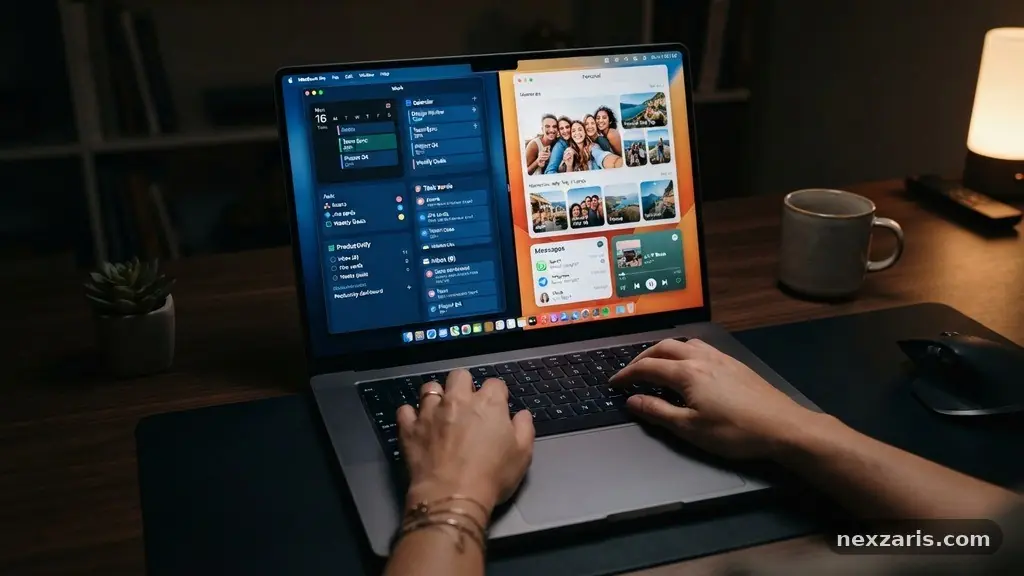
How to Separate Work and Personal Accounts on One Device
Mastering the art of separating Work and Personal Accounts on One Device allows you to maintain professional focus while protecting your private digital life. By creating clear boundaries between your professional responsibilities and personal interests, you reduce the risk of accidental data leaks and improve your overall productivity.
This approach is essential for freelancers, remote workers, and anyone juggling multiple digital identities on a single machine. You will find that implementing these strategies provides a cleaner, safer, and more organized computing experience that evolves with your daily needs.
Leveraging Built-in OS Partitioning
The most effective way to start separating Work and Personal Accounts on One Device is by using the native tools provided by your operating system. Both Windows and macOS offer robust user account management features that treat each profile as a distinct environment.
When you log into a work-specific user account, your desktop icons, system settings, and background applications are entirely independent of your personal profile. This physical separation at the OS level prevents your work files from cluttering your private space.
Creating a separate user account is more than just a visual change; it acts as a digital container. Each account has its own home directory, meaning files saved in the Documents folder of your personal account are inaccessible to the work account by default.
This is a critical step for addressing privacy concerns. You maintain individual caches and local storage areas that do not overlap, which simplifies backup processes and keeps sensitive company information away from personal downloads.
Managing these profiles requires a small amount of initial setup time. On Windows, you can navigate to the Accounts section in Settings to add a “Work or school” user. macOS users can accomplish this through System Settings under “Users & Groups.”
Once established, switching between them takes only a few seconds. This method is superior to simply opening folders, as it forces you to mentally switch modes when you move from one account to the other.
Effective Browser Isolation Techniques
Web browsers are often the primary point of cross-contaminated cookies, which can lead to accidental logins on the wrong accounts. To solve this, you should utilize Dedicated Browser Instances for your professional life.
Instead of mixing your personal browsing history, bookmarks, and extensions with your work tasks, keep them isolated. For example, use Google Chrome for your personal life and Microsoft Edge or a separate Firefox profile for your professional obligations.
This strategy ensures that your work-related browser extensions do not interfere with your personal banking or social media sites. By keeping these environments distinct, you prevent the annoying scenario of a work-based tracking cookie interfering with a personal search.
Browser isolation techniques also allow you to sign into multiple instances of the same service simultaneously without logging out of the other. You can keep your work Slack, email, and project management tools in one browser while your personal accounts remain logged into a different one.
Consider the following benefits of using separate browser profiles:
- Prevents session conflicts between multiple business and personal accounts.
- Allows for custom extension sets tailored to specific productivity workflows.
- Keeps your search history and browser suggestions relevant to the task at hand.
- Increases security by isolating potentially vulnerable extensions to non-critical profiles.
- Simplifies the process of signing out or clearing data for one specific role.
Managing Cloud Storage and Syncing
Cloud services like Google Drive or Dropbox can quickly become a mess if you allow them to sync both personal and work files to the same local directory. To maintain order, you must configure your cloud software to point to distinct folders or, ideally, link them only to the relevant user account.
When you are logged into your work user profile, only your work cloud storage should be active. This prevents personal photos or documents from syncing to your employer’s cloud environment.
If you must use a single user account, utilize the “selective sync” features offered by these providers. You can choose exactly which folders are downloaded to your hard drive, ensuring that only necessary work files exist on your machine.
This practice also helps with disk management, as you won’t be wasting space on personal media that you don’t need during business hours. Always check the synchronization settings periodically to ensure that new folders are not being automatically included.
For those who rely on external services, refer to the Cybersecurity and Infrastructure Security Agency for best practices on securing your digital assets. Proper management of your cloud environment is a core component of digital hygiene.
By keeping your professional and personal data streams separate, you reduce the risk of accidental file sharing. This creates a clear audit trail and ensures that your files remain organized and accessible exactly when you need them.
Comparing Account Management Strategies
Choosing the right method for your needs depends on your device’s hardware and your specific workflow requirements. Some users prefer virtual machines, while others find that simple profile management is sufficient. The table below outlines how different approaches handle the core challenge of separating your digital life.
| Strategy | Security Level | Setup Difficulty | Resource Usage |
|---|---|---|---|
| OS User Accounts | High | Medium | Moderate |
| Browser Profiles | Medium | Low | Low |
| Virtual Machines | Very High | High | High |
| Selective Syncing | Low | Medium | Low |
Each of these strategies offers different levels of protection. For most professionals, combining OS-level user accounts with separate browser profiles provides the best balance of security and convenience.
If you handle highly sensitive data, a virtual machine offers the ultimate isolation by running a completely separate operating system inside your main one. However, most people find that the overhead of a virtual machine is unnecessary for daily tasks.
Security and Privacy Considerations
When you work on the same device used for personal activities, security and privacy concerns become amplified. You must prioritize disk encryption and permissions to ensure that even if your device is lost or stolen, your professional and personal data remain protected.
Enabling full-disk encryption, such as BitLocker on Windows or FileVault on macOS, is the baseline standard for any professional. This protects all data on the drive regardless of how many profiles you have.
Beyond encryption, you should carefully manage the permissions of the applications you install. A personal game or utility app should not have administrative access to the entire machine.
By running your work tasks in a separate user profile, you limit the damage that a malicious or poorly written personal application can do to your work files. This creates a sandbox effect that protects your professional output from personal digital clutter.
Regular maintenance is also a part of your security routine. Periodically audit your installed applications and remove any that are no longer in use.
Check your startup items to ensure that personal apps aren’t automatically launching when you boot up your work profile. These small, deliberate actions prevent the two sides of your digital life from bleeding into one another, keeping your professional reputation and your private data secure.
Organizing Desktop Icons and Files
Your desktop is often the first place where work and personal items collide. When you use the same user account for everything, your desktop icons become a mix of project files, personal photos, and shortcut links.
This visual noise increases stress and makes it harder to focus on the task at hand. By using separate OS user accounts as mentioned earlier, you effectively clear this clutter because each profile has its own unique desktop layout.
If you are unable to use separate OS accounts, utilize virtual desktops. Both Windows and macOS allow you to create multiple “spaces” where you can keep different sets of windows and icons open.
You can dedicate one virtual desktop solely to your work tools and another to your personal browsing. This allows you to “hide” your personal life with a simple keystroke when a colleague stops by or when you need to share your screen during a meeting.
Another effective tactic is to use a strict folder structure for your files. Even if you aren’t using separate profiles, never save files directly to your desktop. Create a root folder for “Work” and another for “Personal.”
Within these, categorize your files by project or date. This keeps your files organized and prevents the accidental movement of a personal document into a work-related folder.
Troubleshooting Common Syncing Issues
Even with the best planning, you may occasionally run into issues where work and personal data overlap. This often happens with browser extensions that sync across devices, such as password managers or bookmark managers.
If you notice your work bookmarks appearing in your personal browser, check the sync settings within the browser itself. You can usually toggle specific sync items off to keep your profiles clean and distinct.
Another common issue is the “default application” problem. You might click a link in a work email and have it open in your personal browser, or a file might default to opening in a personal editor.
You can fix this by adjusting the “Default Apps” settings in your operating system. For specific file types, you can right-click the file and choose “Open With” to set a permanent preference that keeps your work files tied to your work-approved applications.
If you find that your cloud storage is still syncing improperly, ensure that you are signed into the correct account within the desktop application. Sometimes, an update to the cloud software can reset your preferences.
Check the icon in your system tray or menu bar to verify which account is currently active. A quick re-authentication often resolves these sync conflicts and restores the separation you have carefully built.
Frequently Asked Questions
Is it better to use two different computers for work and personal tasks?
While having two physical devices is the most secure and effective method for separation, it isn’t always practical. If you must use one device, implementing separate OS user accounts is the next best solution. It provides nearly all the benefits of separate hardware without the added cost or the need to carry multiple machines.
Does using separate browser profiles impact computer performance?
Using separate browser profiles has a negligible impact on performance for most modern computers. Each profile consumes a small amount of extra RAM, but this is usually offset by the increased efficiency of having a cleaner, more organized workspace. If your device has limited memory, ensure you close the browser profile you aren’t currently using.
Can I share files between my work and personal accounts safely?
Sharing files between accounts is possible, but you should do it intentionally rather than through a shared folder. Use a secure, neutral location like a dedicated cloud folder or an external drive to move files from one account to the other. Always scan these files for malware before opening them in your professional environment to maintain high security.
How do I stop my work notifications from appearing during personal time?
You can use the “Focus” or “Do Not Disturb” features found in modern operating systems to silence work-related notifications. Set these to trigger automatically based on your schedule or location. This ensures that when your workday ends, your device stops demanding your attention for professional tasks.
Will my employer be able to see my personal files if I use the same computer?
If you are using a device managed by your employer, they may have administrative access to the entire machine, regardless of how many profiles you create. In this case, you should assume that your personal files are not truly private. It is always best to keep personal data on a personal device if your work laptop is subject to corporate monitoring.
Conclusion
Successfully separating Work and Personal Accounts on One Device is a habit that pays dividends in both your productivity and your peace of mind. By establishing clear boundaries through OS profiles, browser isolation, and disciplined file management, you create a digital environment that respects your time and protects your privacy. These steps might require a small initial investment of effort, but they prevent the long-term friction of a cluttered, insecure, and distracting workspace.
Take the time this week to audit your current setup and implement at least one of the strategies discussed. You will likely find that the mental clarity gained from having a dedicated professional workspace is well worth the transition.
As you continue to refine your digital habits, you will find it easier to switch off after a long day. If you have questions about specific software configurations, feel free to explore your system’s documentation for more tailored advice on maintaining this balance.
One Comment