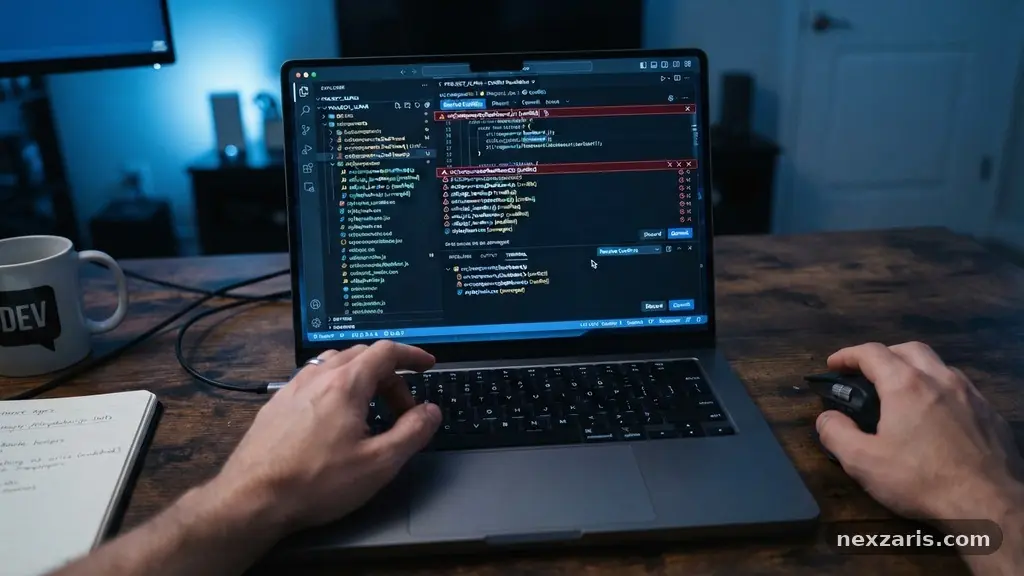
Cloud Sync Conflicts and How to Resolve Them
Understanding Cloud Sync Conflicts and How to Resolve Them is a critical skill for anyone relying on digital collaboration tools today. When two users modify the same file simultaneously, or when a device fails to sync before an offline change occurs, the system creates a divergent version of your data. This process, while frustrating, is actually a safeguard designed to prevent the accidental deletion of your hard work.
By mastering the mechanics behind these errors, you can ensure your data remains secure across all devices. This article provides the practical knowledge needed to identify, manage, and prevent these common synchronization hurdles effectively.
Identifying the Root Causes of Sync Errors
Most sync conflicts emerge from the fundamental nature of distributed systems where multiple clients interact with a central server. When you work on a file, your local machine creates a local cache that tracks changes independently of the cloud server.
If a network interruption occurs, or if you modify a file on a laptop while the desktop version is still processing an earlier update, the server receives two conflicting instructions. These conflicts are usually triggered by a timestamp mismatch where the server cannot determine which version is the most current.
Cloud storage providers typically use file metadata to compare versions during the synchronization process. This metadata includes the date of the last edit, the file size, and a unique hash known as a checksum.
If the server detects that the incoming file has a different checksum than the one currently stored, it pauses the update to prevent overwriting. This pause is the moment a conflict arises, and the software must now ask the user or an automated algorithm to intervene.
Latency often plays a significant role in how frequently these issues manifest in a professional environment. In high-latency connections, the time it takes for a signal to travel from your device to the cloud and back can be long enough for another user to initiate a change.
This is known as concurrent access, where the system struggles to maintain a single source of truth. Understanding these technical limitations helps you anticipate when a conflict might occur, such as when working in areas with unstable internet connectivity.
Managing File Versioning and Conflicts
Modern cloud platforms manage these issues through a process called file versioning, which archives previous iterations of your documents. When a conflict is detected, the service often saves the new version as a separate file rather than deleting your previous progress.
You might see a file renamed with a suffix like “Conflicted Copy” or “User Name’s Version.” This approach ensures that no data is permanently lost, even if it creates a bit of digital clutter in your folders.
The most effective way to handle these duplicates is to perform a manual comparison between the versions. You can open both files side-by-side to identify the specific lines or sections that were modified by different contributors.
Many enterprise-grade cloud service providers offer built-in merge tools that highlight differences in text-based files, such as code or documentation. These tools make the task of integrating changes significantly faster and less prone to human error.
If you find yourself frequently dealing with multiple versions, it may be time to adjust your team’s workflow. Encouraging teammates to use file locking features—where a file becomes “read-only” to others while one person is editing—can prevent conflicts before they begin. This is especially useful for large binary files, such as video projects or complex graphic design assets, where merging manual changes is virtually impossible.
The Role of Local Cache in Synchronization
Every cloud application maintains a local cache on your hard drive to speed up file access and allow for offline editing. When you edit a file while offline, your device stores the changes locally and flags them for synchronization once the internet connection is restored.
The conflict arises if someone else has updated the cloud version of the same file while you were disconnected. Your device then attempts to upload your version, but the cloud server rejects it because the server-side version has already moved forward.
This scenario highlights the importance of the initial handshake between your local sync client and the cloud provider. The sync engine checks the file metadata to see if the local version is compatible with the server version.
If the server detects that the local file has an older base timestamp but newer modifications, it often triggers a “merge” request. If the system cannot automatically merge the changes, it defaults to the safe option of creating a duplicate.
You can often resolve these issues by ensuring that your sync client is up to date and that you allow it sufficient time to finish pending uploads. It is common for users to close their laptops immediately after saving a file, which cuts off the synchronization process prematurely. Allowing the client to finish its background tasks ensures that your local cache is cleared and the server is fully updated, which drastically reduces the chances of encountering a conflict later.
Comparing Cloud Storage Provider Strategies
Different cloud storage providers handle conflicts with varying levels of sophistication and user-friendliness. While some platforms favor automated merging for simple text files, others prioritize data integrity by forcing the user to make a manual selection. Choosing the right provider often depends on whether your work involves frequent collaboration or primarily individual file storage.
The following table compares the general approaches taken by major platforms regarding conflict resolution:
| Provider Type | Primary Strategy | Best Use Case |
|---|---|---|
| Enterprise Suites | Real-time co-authoring | Collaborative office documents |
| Consumer Sync | Automatic version splitting | Individual photo and file backup |
| Developer Platforms | Branching and merging | Code and software version control |
As shown in the table, understanding the underlying philosophy of your chosen service allows you to adapt your habits accordingly. For example, if you use a consumer-grade sync tool for team projects, you should expect to manage more conflicts manually.
Conversely, moving to an enterprise suite that supports live co-authoring eliminates the conflict issue entirely by locking segments of the document at a granular level. You can read more about data handling standards on the National Institute of Standards and Technology website to see how these practices align with broader data security protocols.
Best Practices for Preventing Sync Issues
Preventing conflicts is almost always easier than resolving them, particularly in high-volume environments. One of the most effective strategies is to establish a clear communication loop with your collaborators regarding who is editing which file.
A simple message in a chat application like “I am updating the Q3 report now” can save everyone hours of reconciliation work. This human-centric approach is the most reliable way to avoid the technical pitfalls of distributed systems.
* Wait for completion: Always check your taskbar icon to ensure the sync process has finished before shutting down your device.
* Rename files clearly: Use version numbers or dates in filenames if your platform lacks robust versioning.
* Avoid deep nesting: Extremely long file paths can sometimes cause sync errors on older operating systems.
* Check network status: Verify your connection is stable before initiating large uploads or updates.
* Use native tools: Stick to the cloud-native editors (like web-based document editors) when working on shared projects.
Following these practices reduces the load on the sync engine and minimizes the frequency of timestamp mismatches. It also ensures that your local cache remains in sync with the cloud server, providing a smoother experience across your various devices. When you treat the sync process as a shared utility rather than a background magic trick, you gain a better understanding of how to keep your data organized and safe.
Handling Conflicts in Offline Editing
Offline editing is a powerful feature, but it is the single largest contributor to sync conflicts. When you make changes without a network connection, you are effectively working on a “branch” of the file that the server is unaware of.
Upon reconnection, your device must “rebase” its changes against whatever has happened on the server in the interim. If the server version has changed significantly, the system often treats your offline work as a secondary version to preserve integrity.
To minimize the impact of this, try to limit the duration of your offline sessions as much as possible. If you must work offline, focus on a single file or a specific set of folders to make the eventual merge process less complex.
When you reconnect, stay online long enough to see the “All files up to date” confirmation message. This confirmation is your signal that the server has successfully integrated your offline modifications.
If you are working in a team, try to synchronize your schedule so that you aren’t working offline on the same files simultaneously. If someone else is also working offline, you might encounter a “double-offline” conflict, which is the most difficult to resolve. In these cases, you will likely need to manually copy and paste your changes into a single master document, as the automated tools will not have enough context to know which version is the “correct” one.
Troubleshooting Persistent Sync Failures
Occasionally, you may encounter a file that refuses to sync regardless of your best efforts. This usually indicates a corrupted local cache or a permission error on the server side.
If a file repeatedly shows a conflict error, try moving the file out of the synced folder, waiting for the sync to clear the error, and then moving it back in. This forces the client to re-index the file and often clears out the problematic metadata.
If moving the file doesn’t work, you may need to clear your application’s cache entirely. Most cloud storage desktop clients have a “Reset” or “Clear Cache” option in their settings menu.
This will force the application to re-download the file list from the server, which can resolve deep-seated issues with file metadata. Remember that this process can take some time, especially if you have a large volume of data, as it essentially performs a fresh sync.
Finally, check if the file name contains special characters that might be incompatible with the cloud server’s file system. Symbols like colons, question marks, or asterisks can cause issues during the synchronization process, as some operating systems handle these differently than cloud servers.
Renaming the file to use only standard alphanumeric characters often resolves these stubborn conflicts instantly. Ensuring your file naming conventions are consistent across your team is a simple yet effective way to maintain stability.
Frequently Asked Questions
Why does my cloud storage create duplicate files?
The system creates duplicates when it detects two different versions of the same file that it cannot automatically merge. This is a safety feature intended to prevent you from losing work, essentially letting you choose which version to keep.
How can I tell which version of a conflicted file is the newest?
You can check the file properties or metadata to see the “Last Modified” timestamp. However, be aware that if a user’s local system clock was incorrect, this timestamp could be misleading.
What happens if I delete a conflicted file?
If you delete one of the conflicted files, the other remains safe on the server. Always check the content of both files before deleting one to ensure you aren’t losing unique information.
Can I disable the automatic creation of conflict files?
Most cloud providers do not allow you to disable this, as it is a core mechanism for data safety. Instead, the best approach is to improve your workflow to prevent the conflicts from occurring in the first place.
Does file size affect the likelihood of a sync conflict?
Yes, larger files take longer to upload, which increases the “window of vulnerability” during which another user could modify the file. This is why it is often better to use collaborative tools for large projects.
Conclusion
Understanding Cloud Sync Conflicts and How to Resolve Them is an essential aspect of maintaining a productive digital workspace. By recognizing the role of metadata, timestamps, and local caches, you can navigate these technical hurdles with confidence. Whether you are dealing with a simple duplicate file or a complex merge, the key is to prioritize data integrity and clear communication with your collaborators.
You now have a solid framework for managing these issues, from preventing them through better habits to troubleshooting the occasional persistent error. If you continue to find yourself managing frequent conflicts, consider reevaluating your team’s tools or adopting more robust file-locking strategies.
By applying these principles, you will spend less time managing software errors and more time focusing on your actual work. Feel free to reach out if you encounter a specific scenario that needs further clarification.