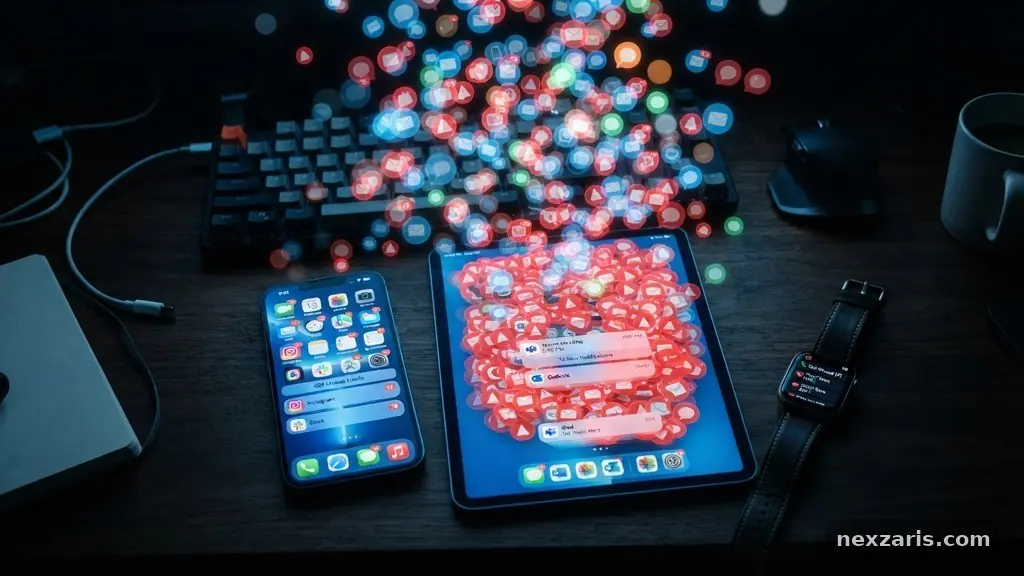
How to Reduce Unnecessary Notifications on Your Devices
Managing your digital environment is essential for maintaining focus and protecting your mental bandwidth throughout the day. By reducing unnecessary notifications on your devices, you can reclaim hours of lost productivity and significantly lower your daily stress levels.
This process involves auditing your apps, configuring system-level settings, and establishing intentional boundaries for how your technology communicates with you. You will gain a calmer, more controlled experience by implementing the specific strategies outlined in this article.
The Anatomy of Notification Overload
Many users experience a constant state of partial attention because their devices are programmed to demand engagement at every turn. Push notifications are designed by developers to trigger a dopamine response, keeping you tethered to the app even when you have no urgent reason to check it.
When your screen lights up with an alert badge, your brain naturally shifts focus away from your current task to assess the new information. This cognitive switching penalty is what makes deep, uninterrupted work feel so difficult to achieve.
Most mobile operating systems include a central notification center that aggregates these alerts, but the default settings are rarely optimized for user peace of mind. Applications often request permission to send alerts during the initial installation phase, and many users instinctively click “Allow” without considering the long-term impact on their attention.
Understanding that these interruptions are often voluntary is the first step toward regaining control. You do not need to accept every alert that an app developer suggests.
Auditing Your App Permissions
The most effective way to start reducing unnecessary notifications on your devices is to perform a comprehensive audit of your installed applications. You should open your device’s system preferences or settings menu and navigate specifically to the notifications section.
This view provides a list of every app that has been granted the power to alert you, and it is usually an eye-opening experience. Many people find dozens of apps they haven’t opened in months that are still permitted to send persistent alerts.
Go through this list one by one and ask yourself if the application truly requires real-time updates. Social media apps, news aggregators, and retail platforms are the primary offenders that fill your lock screen with noise.
Toggle off the permission for any app that does not provide time-sensitive, critical information. If you find yourself missing an alert later, you can always revert the setting, but you will likely find that you never even notice the difference.
Leveraging Focus Mode and Do Not Disturb
Modern operating systems provide powerful tools like Focus Mode and Do Not Disturb to help you manage your time intentionally. These features allow you to silence all non-essential alerts for specific periods, such as during work hours or while you are sleeping.
You can customize these modes to allow calls or messages from important contacts while blocking everything else. By setting a schedule, you can automate your digital boundaries rather than relying on manual adjustments every single day.
Many users find that setting a “work focus” that hides non-work-related apps helps create a mental separation between their professional and personal lives. You can also configure your lock screen settings to minimize the number of visible previews, which prevents you from reading snippets of emails or messages that might distract you.
For a deeper look at the psychology behind these interruptions, you can visit the American Psychological Association’s resources on digital wellness. Using these built-in system features is the fastest way to achieve immediate relief from constant digital pings.
Managing Alert Badges and Sounds
The visual and auditory components of notifications are specifically engineered to grab your attention, even if you are not looking directly at your screen. Removing the red alert badges—those small numbers on app icons—can significantly reduce the urge to clear your device.
Many people feel a psychological compulsion to “clear the deck” of these badges, which forces them into a cycle of checking apps they wouldn’t have otherwise opened. You can usually disable these badges in your system settings on a per-app basis.
Similarly, disabling the notification sound for all but the most critical apps is a highly effective tactic. When your phone vibrates or chimes, it creates an immediate physical reaction that disrupts your current state of flow.
By leaving your phone on silent or only allowing sounds for phone calls and calendar reminders, you choose when to interact with your device. You are no longer at the mercy of every incoming email or social media mention that occurs throughout your busy day.
Optimizing Background Activity and Syncing
Sometimes, the notification itself isn’t the only problem; it is the constant background activity of your apps that keeps your device in a state of high power consumption and activity. Apps that constantly sync in the background are more likely to generate frequent, unnecessary alerts.
By restricting background activity for non-essential apps, you save battery life and reduce the frequency of system-triggered updates. This is particularly useful for email clients or cloud storage apps that might otherwise ping you for minor file changes.
Review your system settings to see which apps are allowed to refresh their data while they are not actively in use. Turning off background refresh for these applications forces them to wait until you actually open them to pull new information.
This creates a “batching” effect where you see all updates at once, rather than being drip-fed information throughout the day. It turns your device into a tool that serves your needs, rather than a distraction that demands your constant monitoring.
Establishing a Notification Batching Routine
Batching is the practice of checking your notifications at set intervals rather than responding to them as they arrive. Instead of reacting to every ping, you might choose to check your communication apps only at 10:00 AM, 1:00 PM, and 4:00 PM.
This strategy transforms notifications from a series of urgent interruptions into a manageable task list. You will find that most issues are not as urgent as the notification sound implies, and they can easily wait until your scheduled check-in time.
To make this work, you must be disciplined about keeping your device in quiet mode during the hours between your batches. If you find this difficult, try keeping your device in another room or inside a drawer during deep work sessions.
You will quickly discover that your ability to focus improves dramatically when you are not constantly expecting a chime. The table below outlines how various types of notifications typically rank in terms of actual urgency.
| Notification Type | Typical Urgency | Recommended Action |
|---|---|---|
| Direct Phone Calls | High | Keep enabled |
| Calendar Reminders | High | Keep enabled |
| Email Notifications | Medium | Disable alerts; batch check |
| Social Media Likes | Low | Disable entirely |
| Retail/Marketing Alerts | None | Disable/Uninstall |
Frequently Asked Questions
Does turning off notifications affect my ability to receive emergency alerts?
Most operating systems have specific, hard-coded overrides for emergency weather or government alerts that ignore your personal notification settings. These critical alerts are handled at the system level to ensure you receive life-saving information regardless of your app-specific configuration. You can safely disable social and utility notifications without worrying about missing these essential broadcasts.
What if I miss an important message by turning off notifications?
The fear of missing out is a common barrier, but most truly urgent matters are resolved via a phone call. If someone needs you immediately, they will typically call you, which you can keep enabled while muting text and email alerts. You can also set up “VIP” lists in your messaging apps so that only texts from family or close colleagues trigger a sound.
How do I know which notifications are actually necessary?
A good rule of thumb is to ask whether the notification requires you to take action within the next ten minutes. If you see an alert and realize you won’t do anything about it until later, it should not be a push notification. Move those types of alerts to a weekly review or simply check the app manually when you have spare time.
Is it better to turn off notifications entirely or just mute them?
Completely disabling notifications is generally more effective for long-term peace of mind because it removes the visual clutter from your lock screen. Muting them temporarily can be useful if you are in a meeting, but for the long haul, you want to strip away the noise permanently. If you find you don’t miss the app after a week, consider whether you need the app installed at all.
Do these settings carry over if I get a new device?
Most modern cloud backups will restore your notification settings when you move to a new device. However, it is a great opportunity to perform a fresh audit because many people blindly accept the default settings during a new setup. Treat every new device as a chance to start with a clean, quiet slate and only add back the permissions that you truly find valuable.
Conclusion
Taking control of your digital life is an ongoing process that requires regular adjustment as your habits and needs evolve. By actively reducing unnecessary notifications on your devices, you are prioritizing your own focus and well-being over the demands of software developers.
Start by disabling the most frequent offenders today and observe how your stress levels respond to the newfound quiet. Remember that your devices are meant to be tools for your convenience, not sources of constant demand.
The goal is to create a technology environment that supports your life rather than dictating your attention. Experiment with different configurations, such as strict focus modes or disabling all non-human alerts, to find what works best for your workflow.
Once you experience the clarity that comes with a quiet screen, you will likely never want to go back to the constant noise of the past. Start your audit now and enjoy the peace that follows.