How to Troubleshoot Software That Closes Without Warning
Dealing with an application crash that happens without an error message is one of the most frustrating experiences for any computer user. When you are deep into a project or finally settling into a game, having your progress vanish because the software simply disappears is incredibly disruptive. Fortunately, troubleshooting software that closes without warning often follows a predictable path of investigation.
By systematically examining your system logs, checking resource usage, and verifying your driver health, you can usually identify the underlying cause of these unexpected exits. This process helps you restore stability to your digital workspace and prevents the loss of unsaved data in the future.
Identifying the Cause Through System Logs
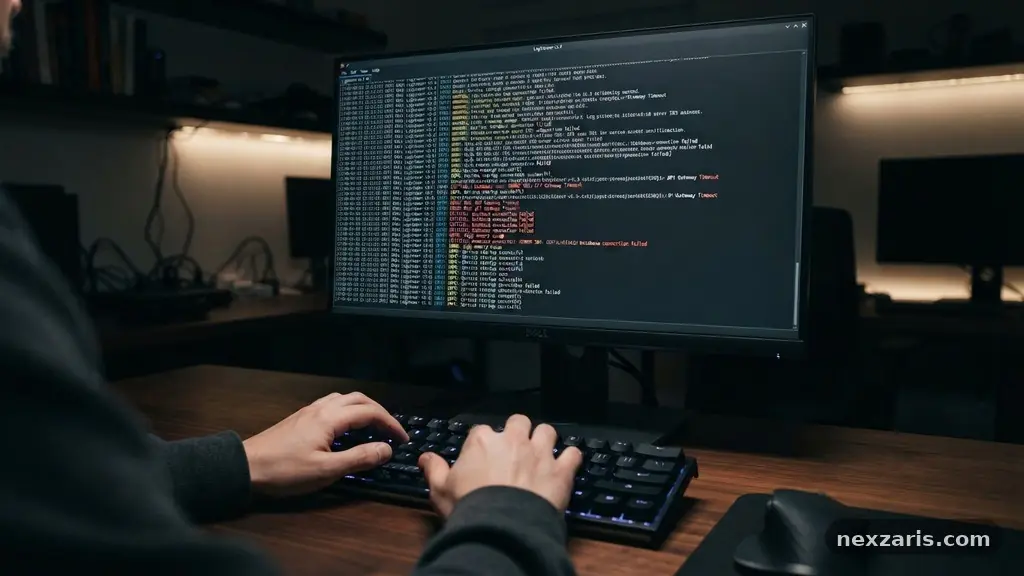
The first step in diagnosing a silent crash is to consult the evidence your operating system leaves behind. Windows maintains a detailed record of every significant event, including critical failures that lead to an application crash.
You should open the Event Viewer, which acts as a digital diary for your computer’s health. Within the Windows Logs section, specifically under the Application category, you can filter for “Error” or “Critical” levels to see exactly what happened at the moment the software closed.
Looking for specific timestamps is vital because this narrows down the chaos to a single second. You might see a reference to a specific module or dynamic link library file that caused the fault. This provides a concrete clue rather than a guess.
If the logs mention a specific runtime error, you have a direct lead to investigate. Don’t worry if the text looks technical at first; searching for the specific error code online often reveals that others have faced the exact same problem with that specific application.
Managing Resource Overload and Memory Leaks
Sometimes a program closes abruptly because your system simply runs out of resources to keep it running. A memory leak occurs when a piece of software requests memory from the operating system but fails to release it when the task is finished.
Over time, this causes the application to consume more RAM than the system can provide, forcing the software to terminate to protect the rest of the OS. You can monitor this in real-time by keeping the Task Manager open on a second monitor or in the background.
Watch the CPU and Memory columns while you work to see if usage climbs steadily without ever leveling off. If you notice a specific background process consuming an unusually high percentage of your resources, that might be the culprit stealing power from your main application.
Sometimes, adjusting the virtual memory settings in your system properties can provide a safety net for applications that demand large amounts of addressable memory. If your machine is constantly hitting its limit, closing unnecessary browser tabs or background utilities before launching your heavy software can often prevent the crash entirely.
Updating and Managing Device Drivers
Hardware communication is mediated by drivers, and outdated or corrupted software components can cause major instability. A common culprit for graphical applications or games is an outdated GPU driver update.
When your graphics card cannot interpret a command from the software, it may trigger a reset of the display driver, which effectively kills the application instantly. Always ensure your drivers are sourced directly from the manufacturer’s website rather than relying on generic versions provided by Windows Update.
Beyond graphics, peripheral drivers can sometimes cause strange, intermittent issues. If you use specialized hardware like drawing tablets, audio interfaces, or mechanical keyboards, these devices often run their own background processes. If these processes conflict with the main software, the application may close to prevent a system-wide hang.
You should also check for a DirectX update, as many modern programs rely on these libraries to communicate with your hardware. Keeping these foundational elements current creates a stable environment for your software to interact with your physical components.
Resolving Dependency Conflicts
Software rarely runs in isolation; it depends on a complex web of shared libraries, redistributables, and frameworks. If one of these dependencies is missing or damaged, the program will close the moment it tries to call that specific function.
This is frequently seen with C++ redistributable packages or outdated versions of the .NET framework. When an application tries to access a function that isn’t where it expects it to be, it triggers a crash.
You can often fix this by reinstalling the specific version of the framework the software requires. Check the manufacturer’s support pages to see which dependencies are mandatory for your version. Another common issue is a corrupted configuration file that stores your user preferences.
If this file contains invalid data, the software might crash while trying to load your settings at startup. Locating the app data folder and renaming the configuration file allows the software to generate a fresh, default version, which often solves the issue instantly.
Verifying System File Integrity
Your operating system files are the bedrock of everything you run, and if they become corrupted, strange behavior is inevitable. Using the System File Checker is a built-in, highly effective way to scan your system for damaged files and replace them with healthy versions from the cache.
You simply need to run a command prompt with administrative privileges and execute the scan. This process is automated and can repair underlying issues that are not immediately obvious.
| Method | Primary Goal | Difficulty |
|---|---|---|
| Event Viewer | Identify error codes | Moderate |
| Task Manager | Check memory leaks | Low |
| SFC Scan | Repair system files | Low |
| Driver Update | Hardware compatibility | Moderate |
Running this scan is a standard procedure for any persistent software issue. It takes about 10 to 15 minutes, depending on the speed of your drive. If the tool finds and repairs corrupted files, you should restart your computer immediately to ensure the changes take effect.
This often clears up mysterious crashes that seem to have no logical cause. For deeper system health checks, you can learn more about how to manage these files at the Microsoft Support Center.
Testing Compatibility and Environment
If a piece of software is older or designed for a different version of the operating system, it might struggle to interface correctly with modern security protocols. Windows compatibility mode allows you to simulate an older environment, such as Windows 7 or 8, which can sometimes bypass the issues causing the sudden shutdown. Right-click the application executable, go to properties, and select the compatibility tab to test these settings.
Another environmental factor is third-party security software. Antivirus programs sometimes flag legitimate software processes as malicious, leading them to kill the process without warning. You can test this by temporarily disabling your security suite to see if the crashes persist.
If the software runs fine while the antivirus is off, you simply need to add an exception for the application in your firewall or security settings. This keeps your system protected while allowing your necessary tools to function without interference.
Frequently Asked Questions
Why does my software close without showing an error message?
Most software is designed to close silently when it encounters a “fatal exception” that it cannot recover from. This happens to prevent the corrupted state from spreading to other parts of your operating system. Because the crash happens so quickly, the application doesn’t have the time or the ability to generate a dialog box explaining the failure.
Can a background process really cause my main program to crash?
Yes, absolutely. If a background process locks a file that your main application needs to write to, or if it consumes so much CPU that the main application times out, the program may terminate. This is why checking the Task Manager is a fundamental step in troubleshooting.
Is it safe to delete the configuration files mentioned earlier?
It is perfectly safe. Renaming the file—for example, adding “.old” to the end of the filename—is a better approach than deleting it. This way, the software creates a new, functional file, but you still have the old one if you need to recover any specific custom settings later.
How often should I update my drivers to prevent crashes?
You should update your GPU and chipset drivers whenever you notice performance drops or new, major software releases. However, if your system is stable, there is no need to update drivers daily. A good rule of thumb is to check for updates once a month or whenever you install a new, demanding application.
What if none of these steps fix the issue?
If you have tried all these steps and the software still closes, the issue might lie in the software’s own code. You should check the software developer’s forums to see if other users are reporting the same bug. Sometimes, a “clean install”—removing the app completely and reinstalling it from scratch—is the only way to clear out deeply embedded bugs.
Final Thoughts on Stability
Troubleshooting software that closes without warning is a process of elimination that rewards patience and attention to detail. By examining your logs, monitoring your hardware usage, and verifying the health of your system files, you can usually pinpoint the exact conflict causing the instability. Most of the time, the solution lies in a simple driver update, a configuration tweak, or a minor adjustment to your background processes.
Do not feel discouraged if the first step does not yield a result; each unsuccessful test is still valuable information that rules out a specific cause. Start with the simplest solutions, keep your system files clean, and you will likely find that your software returns to its reliable, expected behavior. Reach out to official developer support if the issue persists, as they may have specific patches for your unique configuration.