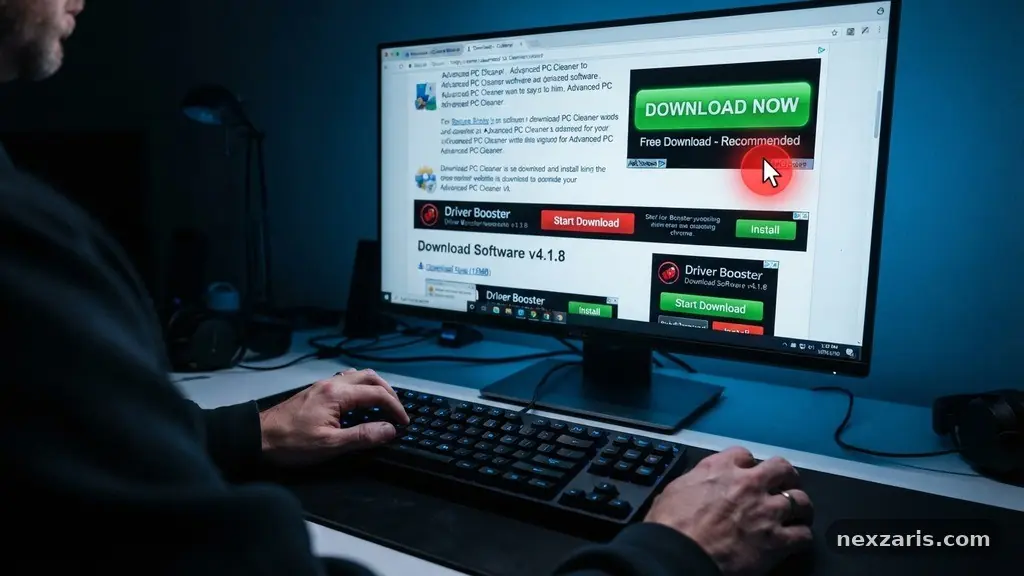
How to Identify Fake Download Buttons on Software Websites
Learning the process of identifying Fake Download Buttons on Software Websites is a critical skill for anyone who frequently installs programs from the internet. These deceptive elements are designed to trick users into clicking on advertisements instead of the actual software package, often leading to unwanted installations or security risks.
By understanding how to spot these traps, you can protect your computer from unnecessary clutter and potential threats. This article provides practical strategies to help you distinguish between legitimate download links and deceptive marketing tactics, ensuring your browsing experience remains safe and efficient.
Inspecting the Source of Your Downloads
The most reliable way to avoid falling for a deceptive link is to verify that you are on the official website of the software developer. Many third-party distribution sites use aggressive advertising layouts that feature large, prominent buttons labeled “Download” or “Start Now.”
These buttons are almost always advertisements for unrelated software or browser extensions rather than the tool you actually intend to install. If you find yourself on a site that does not seem to belong to the developer, exit the tab immediately.
You should always look for the official domain name. For example, if you are searching for a popular media player, the manufacturer’s website should end in a standard domain like .com or .org. Be wary of sites that use variations of a brand name followed by “-download” or “-free.”
These sites often mirror the official site’s design to look authentic while hosting dangerous content. Checking the URL bar before clicking any button is a fundamental habit that prevents most accidental interactions with malicious redirects.
Analyzing Visual Cues and Placement
Fake download buttons often rely on psychological manipulation, a form of social engineering, to force a quick decision. They frequently use high-contrast colors, such as bright green or flashing yellow, that stand out sharply against the rest of the page.
Authentic download buttons are usually designed to match the color scheme and branding of the website. If a button looks like it belongs on a different site, or if it appears in an area typically reserved for banner ads, assume it is fake.
Pay close attention to how many “Download” buttons are visible on the screen. A legitimate developer typically provides one clear, primary download link that is logically placed near the product description.
If you see multiple buttons competing for your attention, or if one is placed prominently at the top of the page while another is tucked away in the content, you are likely looking at a trap. The goal of these sites is to confuse you so that you click the advertisement, which generates revenue for the site owner through clicks or installations.
Utilizing Hyperlink Inspection
Hyperlink inspection is a simple yet powerful technique for identifying malicious links before you interact with them. On a desktop computer, you can hover your mouse cursor over any button without clicking it.
Once you hover, your browser will display the destination URL, usually in the bottom-left corner of the window. If the link points to a domain that is completely unrelated to the software you are trying to download, do not click it.
Legitimate software sites will usually point to their own servers or a verified content delivery network. If the link shows a long, randomized string of characters or redirects to a site like “download-manager-pro.net,” you have likely found a fake.
This method is incredibly effective because it removes the visual deception and reveals the raw destination of the link. It takes only a second to check, yet it provides definitive evidence of whether a button is legitimate.
Recognizing Common Deceptive Tactics
Deceptive websites frequently employ a variety of tricks to convince you that their fake download button is the correct one. One common tactic is to display a fake progress bar or a “System Scan” animation that claims your computer is outdated or infected.
These animations are designed to create a sense of urgency, pressuring you to click the button to “fix” the problem. You can learn more about how to stay safe from online threats by visiting the Cybersecurity and Infrastructure Security Agency.
Another frequent trick involves bundling software. Even if the download button leads to a legitimate program, the site might wrap it in a custom installer that includes PUPs (Potentially Unwanted Programs).
These installers often ask you to “Accept” additional software during the setup process. Always read the screens carefully during installation and uncheck any boxes that offer extra toolbars or search engines.
Understanding File Types and Signatures
When you do click a download link, pay attention to the file type that your browser prompts you to save. Most legitimate software will be provided as an .exe, .msi, or .dmg file that matches the expected product name.
If you are expecting an installer but the download is a zip file, a script, or an unknown executable, cancel the process immediately. These unexpected file formats are often used to hide adware or malware that triggers as soon as you open the file.
Furthermore, Windows and macOS include built-in features for file verification. Legitimate software developers sign their files with digital signatures, which verify that the code has not been tampered with since it was released.
If you attempt to open an installer and your operating system displays a warning that the publisher is unknown or the signature is invalid, take that warning seriously. A lack of a valid digital signature is a major red flag for malicious software.
Comparison of Trusted vs. Deceptive Sites
To help clarify the differences between safe and unsafe environments, the following table highlights key indicators you should look for when searching for software.
| Feature | Trusted Software Source | Deceptive Download Site |
|---|---|---|
| URL Structure | Matches official brand name | Includes generic keywords or misspellings |
| Button Design | Consistent with site branding | Flashing, bright, or mismatched colors |
| Link Destination | Directly to the developer’s server | Redirects to a third-party installer |
| Content | Focuses on the specific product | Features many ads for unrelated items |
Managing Browser Security Settings
You can significantly reduce the risk of accidentally clicking fake buttons by adjusting your browser security settings. Most modern browsers have built-in protections against malicious redirects and phishing attempts.
Ensure that features like “Safe Browsing” or “Enhanced Protection” are enabled in your browser preferences. These systems maintain a database of known malicious websites and will warn you before you even land on a page that is known for distributing adware.
Additionally, consider using browser extensions that block advertisements and pop-up windows. Many fake download buttons are actually embedded within ad networks, and by blocking the ads themselves, you often remove the fake buttons entirely.
This leaves only the legitimate download link on the page, making it much easier to identify the correct path. However, always ensure you download these extensions from official browser stores to avoid adding the very malware you are trying to prevent.
Frequently Asked Questions
Why do websites use fake download buttons?
Website owners use these buttons to generate advertising revenue through a model called pay-per-install. Every time a user clicks the button and installs the bundled software, the site owner earns a commission, regardless of whether the software is useful or malicious.
What should I do if I accidentally clicked a fake download?
If you clicked the button but haven’t opened the file, simply delete the file from your downloads folder immediately. If you opened the file and ran the installer, disconnect your internet, run a full system scan with your antivirus software, and check your browser settings for any new extensions you didn’t install.
Are all third-party download sites dangerous?
Not necessarily, but they are significantly riskier than official developer sites. Some older software archives are legitimate, but they are often cluttered with advertisements that can lead you to malicious content. It is almost always safer to find the direct link on the creator’s official website.
How can I tell if a file is safe before opening it?
Check the file properties to see if it has a valid digital signature from the known developer. You can also upload the file to a tool like VirusTotal, which scans the file against dozens of antivirus engines to check for known threats.
Can fake download buttons install malware automatically?
Usually, the button only initiates the download of an installer. You must still physically open the file and follow the prompts to install the program. However, some advanced threats use “drive-by” exploits that attempt to download files without user intervention, which is why keeping your browser and operating system updated is essential.
Maintaining Safe Downloading Habits
Identifying Fake Download Buttons on Software Websites is an essential habit for preserving your digital security. By remaining vigilant, inspecting your links, and relying on official sources, you can successfully avoid the common traps set by deceptive advertisers. Always remember that if a download button looks suspicious or creates an unnecessary sense of urgency, it is almost certainly not the link you need.
Taking a few extra seconds to verify the destination of a click saves hours of effort spent removing adware or repairing system performance issues. As you gain more experience, these checks will become second nature, allowing you to browse and install software with confidence.
If you have any questions or encounter a particularly tricky site, feel free to reach out to the community or check official security forums for guidance. Staying informed is your best defense in the digital world.
One Comment