How to Create a Reliable Backup Routine for Personal Files
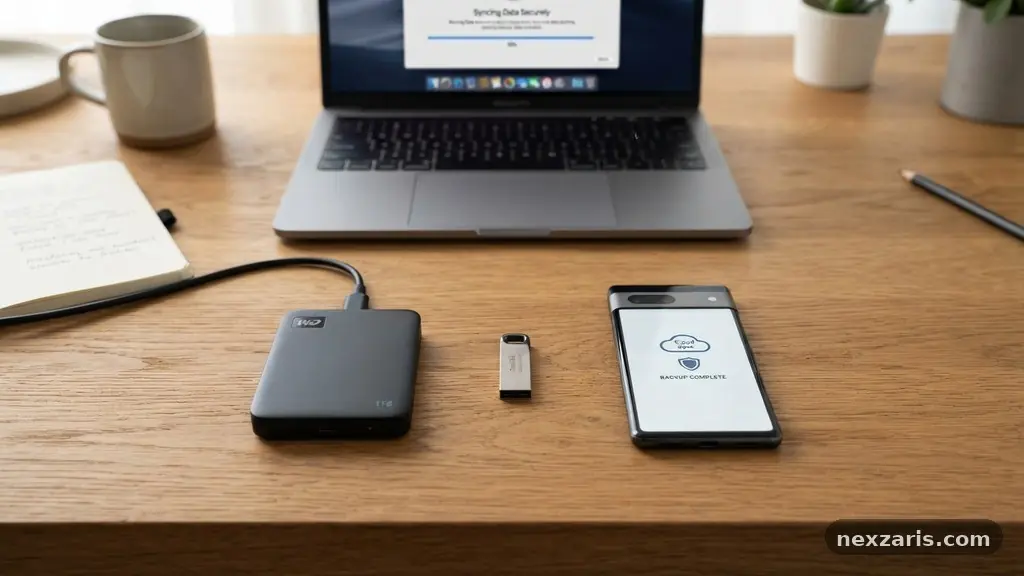
Protecting your digital life begins with creating a Reliable Backup Routine for Personal Files that accounts for both hardware failure and accidental deletion. Many users rely on a single device for their photos, documents, and creative projects, leaving them vulnerable to permanent data loss.
By diversifying your storage locations and automating your workflow, you can ensure your most important files remain accessible regardless of what happens to your primary computer. This article explains the technical steps and organizational habits required to build a system that keeps your information safe, secure, and ready for recovery whenever you need it most.
The 3-2-1 Rule for Data Security
The foundation of any secure system is the 3-2-1 backup strategy. This industry-standard approach dictates that you should keep at least three copies of your data. Two of these copies should be stored on different media types, such as a local computer drive and an external disk.
The final copy must be stored offsite, usually through cloud storage services or a physical drive kept at a separate location. This redundancy protects you against single-point failures like theft, fire, or localized hardware corruption.
Implementing this requires intentional planning rather than just buying more storage space. You start by identifying your primary data, which includes your operating system files, personal documents, and media libraries.
Once you have a clear inventory, you can assign each dataset to a specific backup destination. By following this structure, you guarantee that even if your primary hard drive crashes and your office is compromised, your data survives in the cloud or another secure physical location.
Hardware Options for Local Backups
Local backups provide the fastest recovery time because you do not need to download large files over an internet connection. External hard drives remain the most accessible tool for this purpose, offering high capacity at a relatively low cost per gigabyte.
When choosing a drive, look for models that support modern connection standards like USB 3.0 or USB-C to ensure quick file transfers. These devices are ideal for creating a point-in-time snapshot of your entire system.
For users with larger storage needs, network-attached storage or NAS devices offer a more sophisticated solution. These are essentially small, dedicated servers that sit on your home network, allowing multiple computers to back up to a central location simultaneously.
A NAS often allows for disk redundancy, meaning if one physical drive inside the unit fails, your data remains intact on the others. This level of hardware management is a significant step up from simply plugging in a portable drive once a month.
Utilizing Cloud Storage Services
Cloud storage services serve as your essential offsite backup layer, protecting you from disasters that might affect your physical home or office. Modern platforms offer automated synchronization, which means your files are uploaded to remote servers as soon as you save them locally.
This eliminates the risk of human error where you might forget to run a manual backup. Because these services are managed by large providers, they also offer a degree of physical security and power redundancy that is difficult to replicate at home.
When selecting a provider, prioritize those that offer robust file versioning. This feature allows you to restore an older version of a document if you accidentally overwrite it or if a file becomes corrupted.
It is also important to consider the encryption standards used by the provider to secure your data in transit and at rest. You can learn more about recommended security practices for digital assets at the Cybersecurity and Infrastructure Security Agency.
Understanding Backup Automation
Manual backups are rarely consistent, which is why automation is the most important component of a reliable system. Most operating systems include built-in tools like Time Machine for macOS or File History for Windows that handle the heavy lifting for you.
These tools perform an incremental backup, meaning they only copy files that have changed since the last session. This saves significant time and storage space compared to performing a full system clone every single time.
You should configure your software to run these processes in the background without requiring your intervention. If a backup requires you to manually drag and drop folders, you will eventually stop doing it.
Set your schedule to run daily or even hourly for critical work directories. By removing the need for manual effort, you transform a chore into a passive, background process that works silently while you use your computer.
Protecting Against Digital Threats
Modern backup routines must account for security risks like ransomware, which can encrypt your local files and demand payment for a decryption key. If your backup drive is permanently connected to your computer, ransomware can easily infect your backups as well.
To defend against this, maintain at least one backup that is logically or physically disconnected from your machine. This is often referred to as cold storage or an air-gapped backup.
Encryption is your second line of defense. Even if a physical drive is stolen, encrypted data remains useless to the thief. Ensure that your backup software uses strong, industry-standard encryption like AES-256.
If you store backups in the cloud, enable multi-factor authentication on your accounts to prevent unauthorized access. These layers of security ensure that your backup routine does not become a security vulnerability itself.
Data Integrity and Maintenance
A backup is only as good as its ability to restore your files when disaster strikes. Many users fall into the trap of assuming their backups are working without actually verifying the data integrity.
You should perform a test restoration at least once every six months to confirm that your files are readable and complete. This process involves selecting a few random folders from your backup and attempting to open them on a different computer.
Hardware also degrades over time, so you must replace your backup drives every three to five years. Hard drives have mechanical components that eventually fail, and solid-state drives can lose charge if left unpowered for extended periods.
Keep a log of when you purchased each device and rotate them out of service before they reach the end of their expected lifespan. Treat your backup hardware as a consumable resource that requires periodic renewal.
Comparison of Backup Methods
Choosing the right combination of tools depends on your specific needs for speed, cost, and security. The following table provides a high-level comparison of the most common methods available to personal users today.
| Method | Speed | Cost | Best For |
|---|---|---|---|
| External HDD | Fast | Low | Bulk storage and system images |
| Cloud Storage | Internet-dependent | Subscription | Offsite safety and file access |
| NAS Device | Very Fast | High | Centralized home/office backups |
| Physical Cold Storage | Slow | Low | Long-term archiving |
Frequently Asked Questions
How often should I update my backups?
For most personal users, an automated daily backup is the gold standard. If you are working on professional projects or frequently updated documents, you may want to set your software to run hourly incremental updates to ensure you never lose more than an hour of progress.
What is the difference between a sync and a backup?
Syncing keeps the same files across multiple devices, but it does not protect against accidental deletion. If you delete a file on your laptop, a sync service will delete it from your cloud as well. A true backup creates a separate, historical copy that remains even if the original is removed.
Do I really need an offsite backup?
Yes, because local backups cannot protect you against physical catastrophes like house fires, floods, or theft. If all your copies are in the same building, you are at risk of losing everything at once. An offsite copy is the only way to guarantee data recovery in a worst-case scenario.
How do I know if my backup is encrypted?
Most reputable cloud providers encrypt your data by default, but you should check your specific settings to ensure “client-side” or “zero-knowledge” encryption is enabled. For local drives, use the built-in disk encryption tools like BitLocker or FileVault to protect your external hardware from unauthorized access.
What is disk imaging?
Disk imaging creates a perfect, sector-by-sector copy of your entire hard drive, including your operating system, programs, and settings. This allows you to restore your entire computer to its exact state from a specific date, which is much faster than reinstalling Windows or macOS from scratch.
Conclusion
Creating a Reliable Backup Routine for Personal Files is one of the most productive investments you can make for your peace of mind. By distributing your data across local drives and secure cloud services, you eliminate the anxiety that comes with potential hardware failure. Remember that the best system is one that requires the least amount of manual effort, so lean into automated tools and set-and-forget schedules.
Start today by auditing your current files and identifying your most critical data. Whether you choose to invest in a network-attached storage unit or simply subscribe to a cloud provider, taking the first step is the most important part of the process.
If you follow the 3-2-1 rule and keep your hardware updated, you will be well-prepared for any digital emergency that comes your way. Reach out to local hardware experts if you need help configuring your initial setup.