What to Look for Before Installing an Unknown Application
When you encounter software from an unverified source, knowing what to look for before installing an unknown application can be the difference between a productive session and a compromised system. Security risks often hide behind attractive features or urgent prompts, making it essential to evaluate every file before executing it on your machine.
By verifying the origin and integrity of an installer, you protect your personal data and maintain the health of your operating system. This article outlines the specific steps you should take to assess software safety, helping you make informed decisions about the tools you allow into your digital workspace.
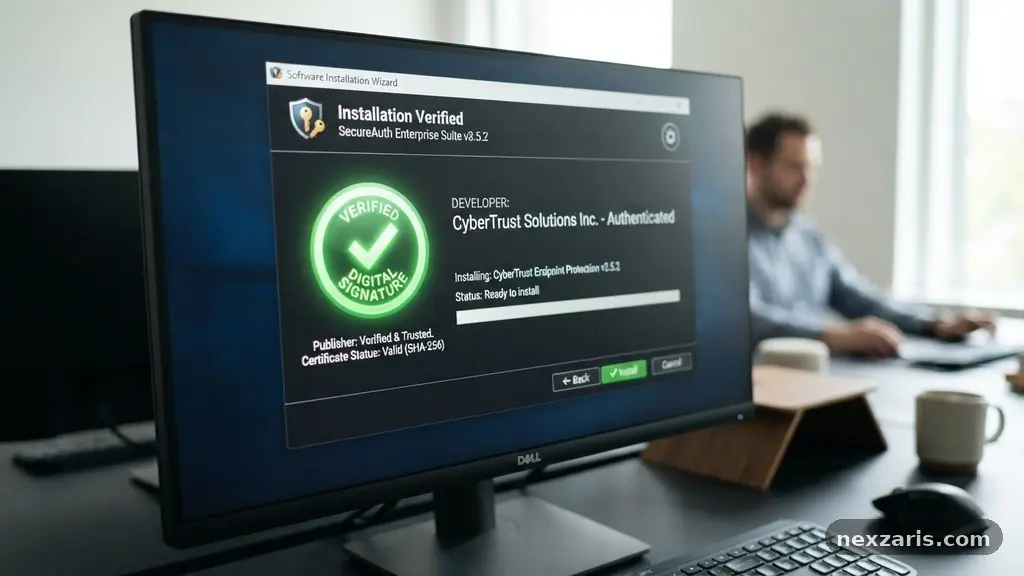
Verify the Digital Signature and Developer
The first line of defense when you encounter an executable file is checking its digital signature. A valid signature acts as a tamper-evident seal, confirming that the code has not been altered since it was signed by the developer.
You can typically view this information by right-clicking the installer and opening the properties window. Look for a “Digital Signatures” tab; if it is missing, the file lacks a verified provenance.
Always cross-reference the name of the signer with the expected software vendor. Attackers often use self-signed certificates or fake identities to mimic legitimate companies.
If the certificate authority listed in the details is unknown or flagged as suspicious, treat the file as a potential threat. Relying on a verified chain of trust ensures that the software comes from a known entity rather than an anonymous source.
Analyze the File with Security Tools
Before you double-click any file, utilize online scanning services to get a second opinion. A platform like VirusTotal allows you to upload a file or submit a URL to be scanned by dozens of antivirus engines simultaneously.
This process checks the file against known malware databases and heuristic signatures that individual scanners might miss. If even one or two engines report a detection, you should immediately reconsider your decision to proceed.
Pay close attention to the detection ratio provided by these tools. A clean result from 70 different engines is a strong indicator of safety, but a single detection might be a false positive or a sign of a new, emerging threat.
Use this data as part of your overall risk assessment rather than the final word. Never ignore a warning from a reputable security engine, as it often identifies behavior that standard users cannot see.
Check the Reputation of the Source
Where you download an application is often just as important as the application itself. Official developer websites are the only truly reliable sources for installers, as third-party hosting sites frequently bundle unwanted software or adware into the original package.
Check the URL carefully to ensure you are not on a look-alike domain designed to trick users through social engineering. If the site looks poorly maintained, lacks contact information, or uses aggressive pop-ups, it is likely untrustworthy.
Search for user reviews and forum discussions regarding the software to see if others have encountered issues. If a program is widely used, you will find active communities, documentation, and a clear history of updates.
Conversely, if a search yields zero results or mentions of “malware” or “browser hijackers,” avoid the installation entirely. Community feedback is a powerful filter for identifying hidden risks that automated tools might overlook.
Understand Installer Permissions and System Changes
Modern operating systems require elevated privileges for installers to function, but you should always be wary of what an application asks to change. If an installer requests administrative access, it gains the ability to modify the system registry, install background services, or disable security features.
You should apply the principle of least privilege whenever possible, granting only the access necessary for the program to run. Watch for prompts that ask for permissions unrelated to the software’s primary function, such as access to your webcam or private documents.
| Permission Type | Risk Level | Reason for Concern |
|---|---|---|
| System Registry Access | High | Can lead to persistent backdoors and system instability. |
| Network Connections | Medium | May allow data exfiltration to unauthorized servers. |
| File System Modification | Medium | Could overwrite critical OS files or personal data. |
| Hardware Access | High | Potential for unauthorized use of camera or microphone. |
Utilize a Sandbox Environment
If you must run an unknown application but want to minimize risk, execute it inside a sandbox environment. A sandbox is a restricted area of your computer that separates the software from your main operating system and files.
Any changes the program makes are confined to this virtual space and are discarded once the session ends. This is an excellent way to test features, verify that the software works as intended, and observe its behavior without endangering your machine.
Many modern operating systems now include built-in features for virtualization that make sandboxing easier than ever. If your system does not offer this, consider third-party tools specifically designed for isolated execution.
By running the installer in a sandbox, you can watch for unexpected network traffic or unauthorized file modifications. If the application proves to be malicious, you simply close the sandbox, leaving your actual computer untouched and secure.
Evaluate Source Code Transparency
Open source software offers a unique advantage: the ability to inspect the code before you compile or run it. When a project makes its source code available on a public repository, it invites the community to audit the logic for vulnerabilities or backdoors.
This level of transparency makes it much harder for malicious actors to hide harmful behavior. If you are tech-savvy, browsing the repository can reveal how the software handles data and communicates with the internet.
Even if you are not a programmer, the existence of an open source repository is a positive sign of accountability. It shows that the developers are willing to be scrutinized by their peers.
Look for signs of active maintenance, such as recent commits and a history of resolved issues. A project that has been abandoned for years is more likely to contain unpatched security holes, regardless of whether it is open or closed source.
Perform Hash Verification
Hash verification is a technical but highly effective way to ensure the file you downloaded is exactly what the developer intended. Every file has a unique digital fingerprint, known as a hash, generated by an algorithm like SHA-256.
When you download an installer, the developer often provides this hash string on their website. By running a simple command in your terminal or using a file-check utility, you can calculate the hash of your downloaded file and compare it to the original.
If the hash values do not match perfectly, the file has been corrupted or, worse, modified by a third party. This is a common technique used by attackers to distribute compromised software that looks identical to the original version.
Never proceed with an installation if the hash verification fails, as it indicates the integrity of the file is compromised. This simple check takes only a few seconds but provides definitive proof that you have the genuine, untampered package.
Frequently Asked Questions
What is the most common sign of a malicious installer?
The most common red flag is the installer requesting excessive permissions, such as administrative access to the entire system registry, despite the software being a simple tool. Additionally, if the file is flagged by multiple engines on a service like VirusTotal, it is almost certainly dangerous.
Can I trust an application if it has a digital signature?
A digital signature is a strong indicator of legitimacy, but it is not infallible. Attackers can sometimes steal certificates or use them to sign malicious code, so you must still verify that the signer is the actual company you expect to be dealing with.
Why should I use a sandbox for unknown apps?
A sandbox provides a layer of isolation that prevents an application from affecting your host operating system. If the application contains malware, it will be trapped within the virtual environment, protecting your personal files and system settings from damage.
What does hash verification actually tell me?
Hash verification confirms the file’s integrity by comparing its digital fingerprint against the one provided by the developer. It ensures that the file you have is exactly the same one released by the creator, with no modifications or corruption occurring during the download process.
Is open source software always safer to install?
Open source software is generally more transparent, but it is not inherently immune to vulnerabilities. While the code is auditable, you should still check for signs of active maintenance, as unpatched open source projects can be just as risky as closed-source ones.
Final Thoughts on Software Security
Choosing what to install is a fundamental aspect of maintaining a secure and stable computer. By consistently checking digital signatures, utilizing sandboxes, and verifying file integrity, you build a habit of caution that serves as your best defense.
Remember that the convenience of a new tool is never worth the risk of a full system compromise. If an application fails any of the security checks mentioned here, it is always safer to walk away and find a reputable alternative.
Taking these steps before installing an unknown application ensures that your digital environment remains under your control. Stay vigilant, rely on verified sources, and keep your security tools up to date to handle emerging threats.
When you prioritize safety in your daily routine, you can explore new software with confidence and peace of mind. Feel free to incorporate these practices into your workflow and share these insights with others to help keep the wider community secure.